Animations
Bring your designs to life with built-in animations.
Animation Types
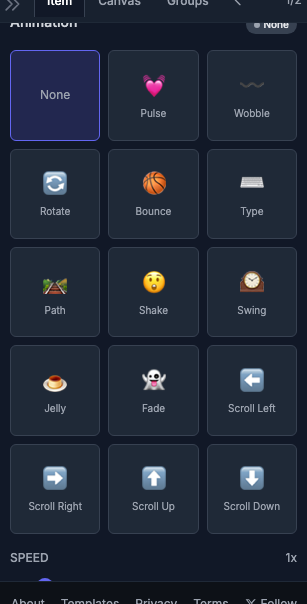
PinePaper includes 8 animation presets:
| Animation | Description | Best For |
|---|---|---|
| Pulse | Gentle scaling in and out | Headlines, emphasis |
| Rotate | Continuous 360° rotation | Icons, logos |
| Bounce | Bouncing up and down | Playful content |
| Fade | Fade in and out | Subtle emphasis |
| Wobble | Side-to-side wobble | Attention grabbing |
| Slide | Horizontal sliding | Entrance effects |
| Rise | Vertical rising motion | Entrance effects |
| Typewriter | Letter-by-letter reveal | Text reveals |
Applying Animations
Method 1: Properties Panel
- Select an item with the Selection Tool (V)
- In the Properties Panel, find Animation
- Choose an animation from the dropdown
- Adjust Speed if desired
Method 2: Right-Click Menu
- Right-click on an item
- Select Animate → Choose animation type
Animation Settings
Speed
Control how fast the animation plays:
- 0.5 — Half speed (slower)
- 1.0 — Normal speed
- 2.0 — Double speed (faster)
Removing Animation
- Select the animated item
- Set Animation to None in the Properties Panel
Previewing Animations
- Press Space to play/pause all animations
- Animations play automatically in the canvas
Export Compatibility
| Animation | MP4 | GIF | SVG |
|---|---|---|---|
| Pulse | ✅ | ✅ | ✅ |
| Rotate | ✅ | ✅ | ✅ |
| Bounce | ✅ | ✅ | ✅ |
| Fade | ✅ | ✅ | ✅ |
| Wobble | ✅ | ✅ | ✅ |
| Slide | ✅ | ✅ | ✅ |
| Rise | ✅ | ✅ | ✅ |
| Typewriter | ✅ | ✅ | ⚠️ Limited |
SVG Limitations: Typewriter animation has limited support in animated SVG. For full compatibility, export as MP4 or GIF.
Advanced: Keyframe Animations
For complex animations with precise control, use the Keyframe Editor.
Tips
Animation Tips:
- Use subtle animations (pulse, fade) for professional content
- Match animation speed to your video duration
- Don’t over-animate — one or two animated elements is often enough