Drawing Tools
Create freehand drawings and brush strokes on your canvas with six professional drawing tools.
Activating Drawing Mode
- Click the Draw button in the toolbar, or
- Press B
When drawing mode is active, the drawing tools panel appears with all available tools.
Available Tools
Pen Tool
The default drawing tool for smooth, consistent strokes.
| Property | Description |
|---|---|
| Color | Stroke color |
| Width | Brush size in pixels |
| Opacity | Transparency (0-100%) |
- Click and drag on the canvas to draw
- Release to finish the stroke
- Paths are automatically smoothed after release
Ink Brush
Calligraphic strokes with pressure simulation for expressive, variable-width lines.
| Property | Description |
|---|---|
| Color | Ink color |
| Width | Base brush size |
| Pressure | Simulated pressure variation |
The ink brush creates strokes that vary in thickness based on speed - draw slowly for thick lines, quickly for thin lines. Perfect for calligraphy, lettering, and artistic illustrations.
Marker
Wide, semi-transparent strokes that simulate a highlighter or felt-tip marker.
| Property | Description |
|---|---|
| Color | Marker color |
| Width | Marker width (wider than pen) |
| Opacity | Semi-transparent by default |
Markers have a flat tip appearance and are great for highlighting, annotation, and bold strokes.
Spray Can
Scattered dots that simulate spray paint for textured, diffused effects.
| Property | Description |
|---|---|
| Color | Spray color |
| Width | Spray radius |
| Density | How many dots per spray burst |
Hold and move to create spray paint effects. Works well for backgrounds, textures, and graffiti-style art.
Eraser
Remove strokes from the canvas by painting over them.
| Property | Description |
|---|---|
| Width | Eraser size |
Click and drag over strokes to erase them. The eraser removes any drawing strokes it touches.
Fill Bucket
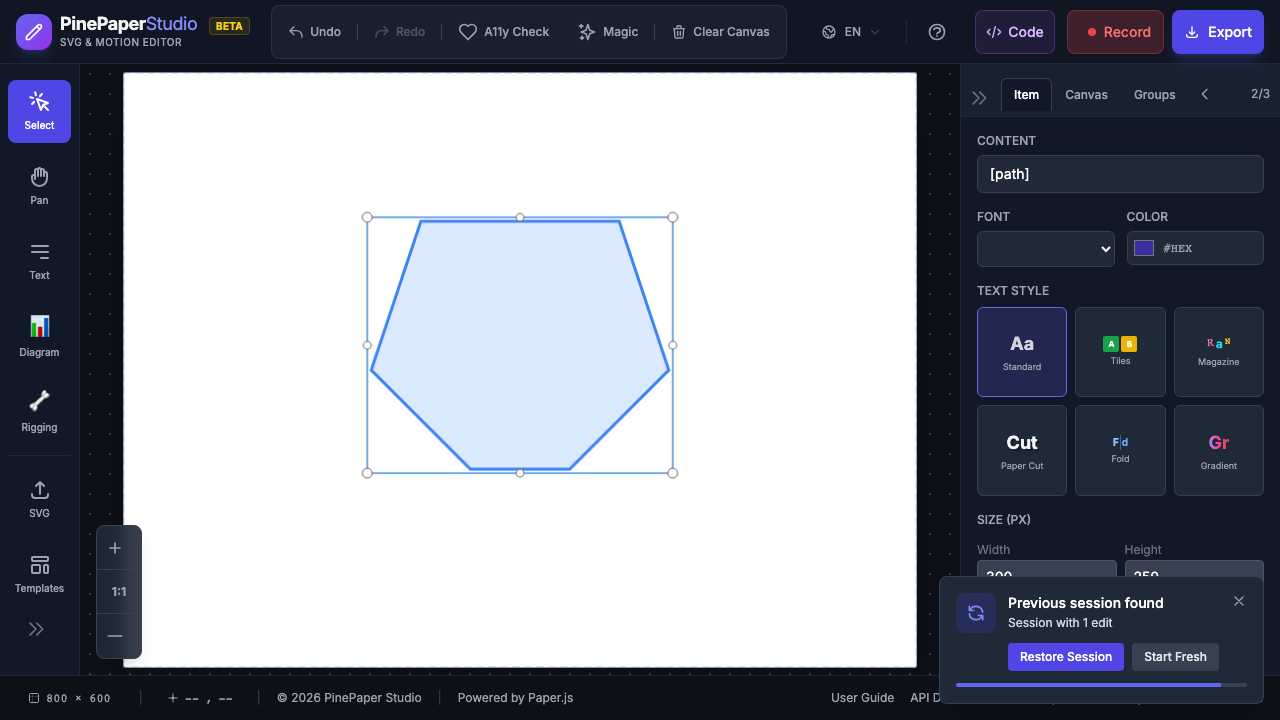
Fill enclosed areas with color using a three-stage detection system:
| Stage | What It Detects | Result |
|---|---|---|
| 1. Stroke | Click on a stroke | Fills the stroke itself |
| 2. Path | Click inside a closed path | Fills the enclosed area |
| 3. Canvas | Click on empty canvas | Fills the canvas background |
Click anywhere on the canvas - the fill tool intelligently determines what to fill based on where you click.
Tool Switcher
When drawing mode is active, the tools panel shows all six tools as icon buttons:
- Click a tool icon to switch to it
- The active tool is highlighted
- Each tool remembers its own color and width settings
Color and Width Controls
All drawing tools share these controls:
- Color picker - Click to choose stroke color
- Width slider - Drag to adjust brush size
- Opacity slider - Set transparency (available on pen, ink, marker)
Quick size adjustment: Use [ and ] to decrease and increase brush size without opening settings.
Where Drawings Appear
Freehand drawings are added to the background layer. They appear behind text and other interactive elements.
To draw on the background:
- In the Scene panel, select Drawing as the background mode
- Use any drawing tool
Tips
For smooth curves:
- Draw slowly and steadily
- Use larger brush sizes for smoother results
- The path is automatically smoothed after you release
- Combine tools - Use the pen for outlines, then fill with the fill bucket
- Layer effects - Use the spray can for texture, then draw details with the ink brush
- Undo freely - Press Ctrl+Z to undo individual strokes
Keyboard Shortcuts
| Shortcut | Action |
|---|---|
| B | Activate Drawing Mode |
| [ | Decrease brush size |
| ] | Increase brush size |
| Ctrl+Z | Undo last stroke |