Letter Collage
Create stylized text with per-letter customization using the Letter Collage system.
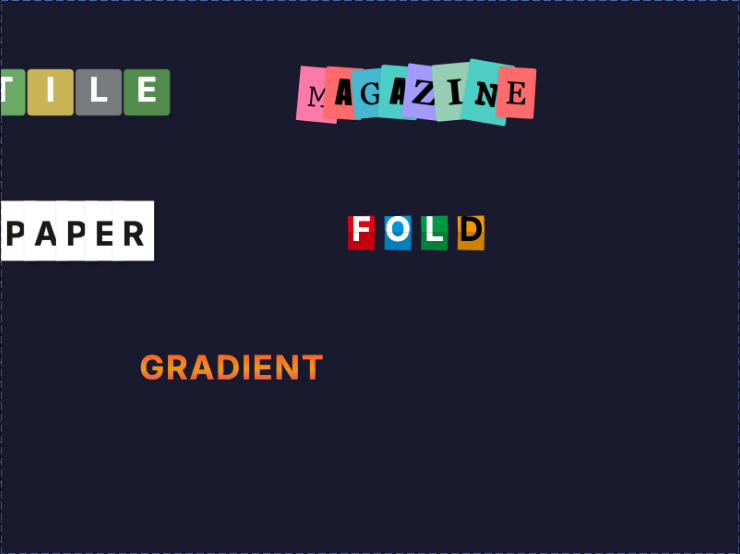
What is Letter Collage?
Letter Collage transforms plain text into visually striking designs where each letter can have its own style, color, and effects. Perfect for:
- Social Media Posts — Eye-catching headlines
- Posters & Flyers — Creative typography
- Educational Content — Spelling games, word art
- Marketing Materials — Brand-aligned text designs
Available Styles
Tile Style (Wordle/Scrabble)
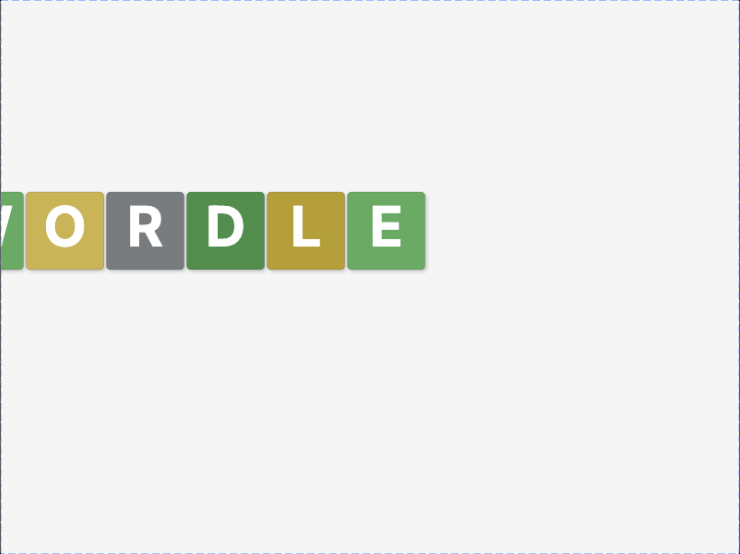
Letters appear on colored square backgrounds, like Wordle or Scrabble tiles.
Best for: Word games, educational content, playful designs
Palettes: Wordle, Scrabble, Candy, Neon, Pastel, Earth, Ocean, Corporate, Christmas, Rainbow, and more
Magazine Style
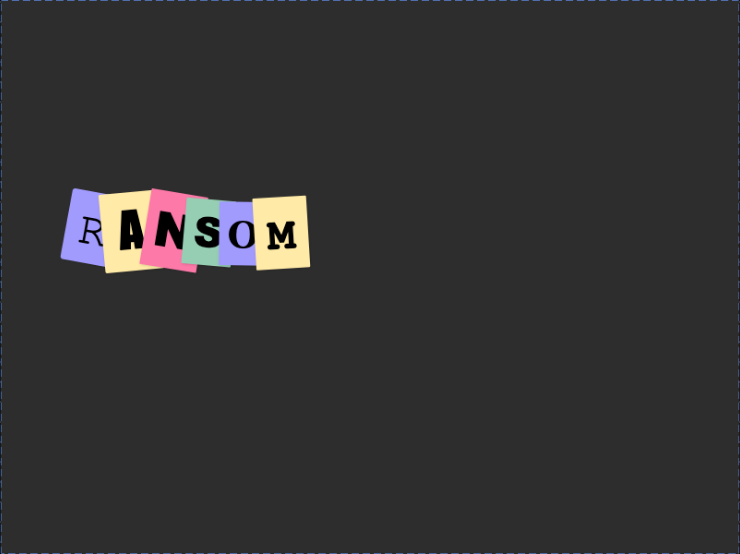
Each letter uses random fonts, sizes, rotations, and colors — like cutouts from magazine pages.
Best for: Ransom note aesthetic, creative posters, artistic designs
Features:
- Random font variation
- Random size variation (0.8x to 1.2x)
- Random rotation (-15° to +15°)
- Mixed background colors
Paper Cut Style
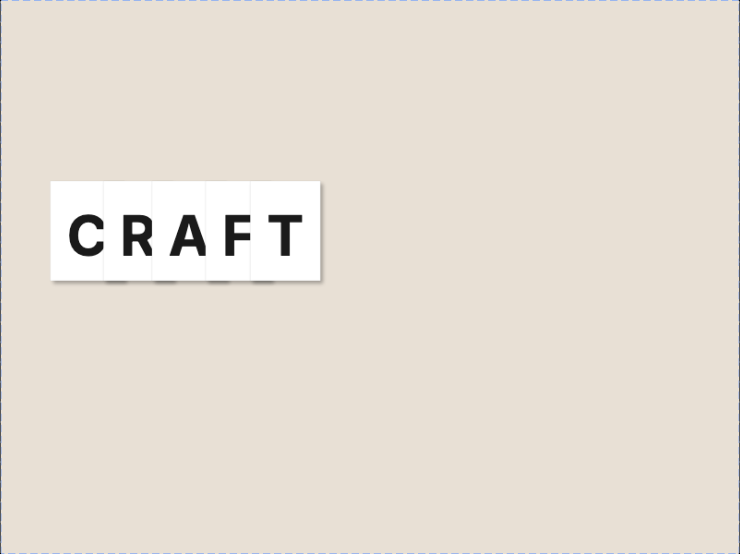
Letters appear as cut paper with subtle shadows, creating a layered depth effect.
Best for: Craft aesthetics, scrapbook designs, warm friendly vibes
Features:
- Paper-colored backgrounds (white, cream, off-white)
- Subtle drop shadows for depth
- Clean, crisp edges
Fold Style
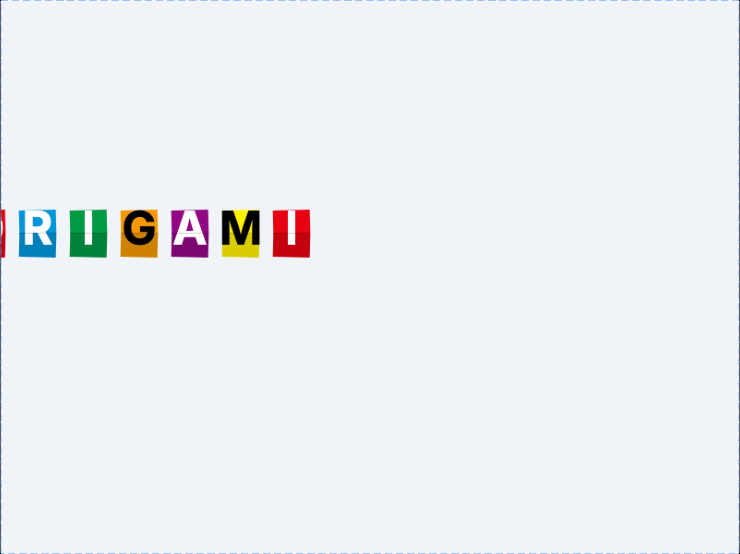
Letters have an origami-style folded appearance with gradient shading.
Best for: Modern designs, geometric aesthetics, creative typography
Features:
- Folded paper effect
- Gradient shading for depth
- Professional appearance
Gradient Style
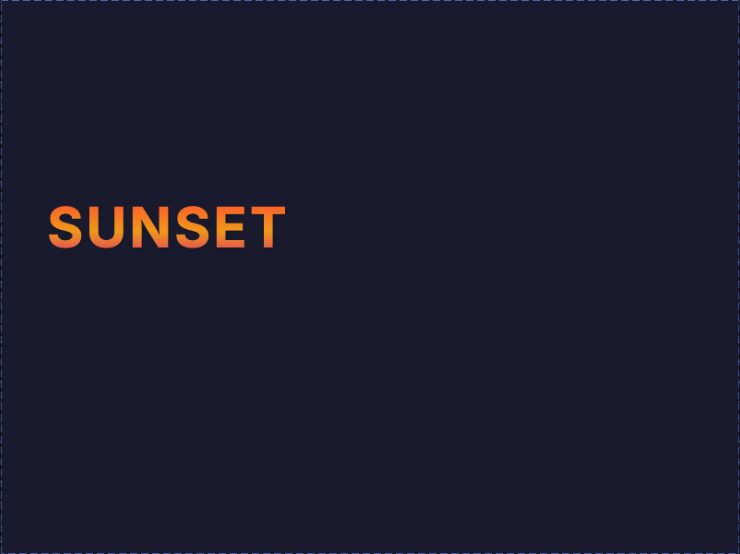
Each letter is filled with a beautiful gradient color.
Best for: Modern designs, vibrant social media, eye-catching headers
Palettes: Rainbow, Sunset, Ocean, Fire, Ice, Gold, Chrome, Cyberpunk, Neon Glow, Purple Pink, and more
Directions: Vertical, Horizontal, Diagonal, Radial
Creating a Letter Collage
- Activate the Text Tool (T)
- In the Text Settings panel (right side), find Text Style
- Select your desired style (Tile, Magazine, Paper Cut, Fold, or Gradient)
- Choose a Color Palette from the dropdown
- Click on the canvas and enter your text
- Click Create Collage to apply the style
The Text Style options appear in the right panel when the Text Tool is active. Each style has its own set of color palettes optimized for that visual effect.
Color Palettes
Tile Palettes
| Category | Palettes |
|---|---|
| Game | Wordle, Scrabble |
| Vibrant | Candy, Neon, Rainbow |
| Soft | Pastel, Vintage |
| Natural | Earth, Ocean, Forest |
| Professional | Corporate, Monochrome |
| Seasonal | Christmas, Autumn, Spring |
| Magazine | Magazine, Newspaper, Papercraft |
Gradient Palettes
| Category | Palettes |
|---|---|
| Warm | Rainbow, Sunset, Fire, Gold, Rose |
| Cool | Ocean, Ocean Deep, Ice, Forest, Midnight |
| Vibrant | Cyberpunk, Neon Glow, Purple Pink, Chrome |
Animating Letter Collages
Letter collages support powerful staggered animations where each letter can animate in sequence.
Sequence Patterns
| Pattern | Description |
|---|---|
| Linear | Letters animate left-to-right (default) |
| Reverse | Letters animate right-to-left |
| Random | Letters animate in random order |
| Center | Animation starts from center, expands outward |
| Fibonacci | Timing follows Fibonacci sequence for natural feel |
| Wave | Sine wave timing creates flowing effect |
Animation Effects
| Effect | Description |
|---|---|
| fadeSlideUp | Letters fade in while sliding up |
| fadeSlideDown | Letters fade in while sliding down |
| popIn | Letters pop in with overshoot bounce |
| typewriter | Letters appear instantly (typewriter effect) |
| wave | Letters bob up and down |
How to Animate
- Create your letter collage
- Select the collage group
- In the Animations panel, choose a staggered animation
- Adjust timing parameters (stagger delay, duration)
- Preview with the Play button
Working with Individual Letters
Each letter in a collage is a registered item that can be selected and animated independently.
Viewing in Groups Panel
- Create a letter collage
- Open the Groups panel (click the Groups tab)
- Your collage appears as an expandable group
- Click the arrow to see individual letters listed as “Letter: A”, “Letter: B”, etc.
Breaking Apart a Collage
To convert a collage into independent letters:
- Select the collage group
- Use Ungroup (right-click menu or Cmd/Ctrl+Shift+G)
- Each letter becomes a separate item
- Letters can now be moved, styled, and animated independently
Selecting Individual Letters
- Click on a letter while the collage is selected to select just that letter
- Shift+Click to add/remove letters from selection
- Use the Groups panel to click on specific letters by name
Tips
Design Tips:
- Use Tile style for word games and educational content
- Use Magazine style for artistic, creative posters
- Use Paper Cut for warm, crafty aesthetics
- Use Gradient for modern, vibrant social media posts
- Keep text short (3-8 letters) for best visual impact
Animation Tips:
- Use Fibonacci sequence for natural, organic-feeling reveals
- Use Center sequence for dramatic emphasis
- Start with 0.1s stagger delay and adjust to taste
- Combine with keyframe animations for complex effects
Performance Note: Letter collages with many characters (20+) may impact performance. For long text, consider using standard text styling instead.
Export Compatibility
| Style | MP4 | GIF | SVG | PNG |
|---|---|---|---|---|
| Tile | ✅ | ✅ | ✅ | ✅ |
| Magazine | ✅ | ✅ | ✅ | ✅ |
| Paper Cut | ✅ | ✅ | ✅ | ✅ |
| Fold | ✅ | ✅ | ✅ | ✅ |
| Gradient | ✅ | ✅ | ✅ | ✅ |
All letter collage styles export correctly to all formats.
RTL Language Support
Letter Collage automatically detects and supports right-to-left (RTL) languages including:
- Arabic (العربية)
- Hebrew (עברית)
- Farsi/Persian (فارسی)
- Urdu (اردو)
When RTL text is entered:
- Letters are positioned right-to-left automatically
- Staggered animations play in the correct reading direction (right to left)
- All styles (Tile, Magazine, Paper Cut, Fold, Gradient) work with RTL text
The direction is detected automatically from the text content, so you don’t need to configure anything special.
For mixed-direction text, the direction is determined by the first strong directional character (first RTL character makes the whole collage RTL).
Keyboard Shortcuts
| Shortcut | Action |
|---|---|
| T | Activate Text Tool |
| Enter | Confirm text entry |
| V | Switch to Selection Tool |
Related
- Text Tool — Basic text creation
- Animations — Add animations to your collage
- Effects — Add sparkle or blast effects