Infinite Canvas
Break free from fixed dimensions with PinePaper’s infinite canvas mode. Items can be placed anywhere without boundary constraints, perfect for brainstorming, mind maps, and designs that grow organically.
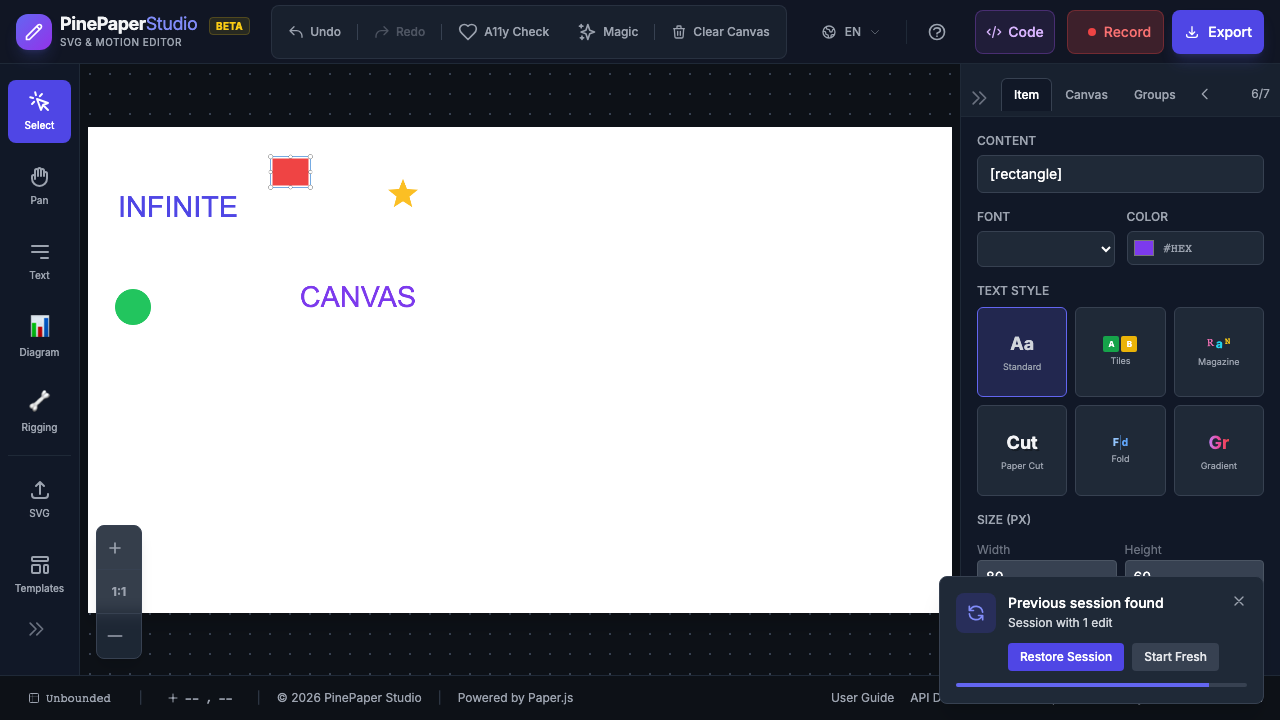
What is Infinite Canvas?
By default, PinePaper uses a fixed canvas size (e.g., 800x600 or 1080x1080). Infinite canvas removes these boundaries:
| Feature | Fixed Canvas | Infinite Canvas |
|---|---|---|
| Boundaries | Items constrained to canvas edges | No boundaries |
| Dragging | Items stop at canvas borders | Free dragging in any direction |
| Pan | Limited to canvas area | Unlimited panning |
| Best for | Export-ready designs | Brainstorming, exploration |
Enabling Infinite Canvas
From the Canvas Size Menu
- Click the canvas size dropdown in the footer bar
- Select Unbounded from the list
- The canvas borders disappear and you can freely place items anywhere
From the View Menu
- Open the View menu
- Select Unbounded Canvas
Navigation
When working on an infinite canvas, navigation becomes essential:
| Action | How |
|---|---|
| Pan | Hold Space and drag |
| Zoom in | Scroll wheel up or Ctrl+= |
| Zoom out | Scroll wheel down or Ctrl+- |
| Fit to content | Click Fit in the footer bar |
Tip: Use the Fit to content button in the footer to quickly zoom to see all your items, no matter how spread out they are.
Switching Back to Fixed Canvas
To return to a fixed-size canvas:
- Click the canvas size dropdown in the footer
- Choose any preset size (e.g., Instagram Post, YouTube Thumbnail)
- Or enter a custom width and height
Items outside the new canvas boundaries remain in place but may be outside the visible/exported area.
Exporting from Infinite Canvas
When exporting from an infinite canvas:
- SVG Export includes all items regardless of position
- PNG/PDF Export uses the visible viewport or can auto-fit to content
- Use Expand Canvas to Fit before exporting to ensure all items are captured
Tip: Before exporting, use the Expand Canvas to Include Content option to automatically size the canvas to fit all your items with padding.
Best Practices
- Use for exploration - Start with infinite canvas for brainstorming, then switch to a fixed size for final export
- Group related items - Use the Groups panel to keep related content organized
- Use Fit to Content frequently - It’s easy to lose track of items on an infinite canvas
- Set a fixed size before exporting - This ensures consistent output dimensions
Related: Interface Overview | Export Overview