Text Tool
Create and edit text elements on your canvas.

Activating the Tool
- Click the Text button in the toolbar, or
- Press T
Creating Text
- Activate the Text Tool
- Click anywhere on the canvas
- Type your text in the dialog that appears
- Click Create or press Enter
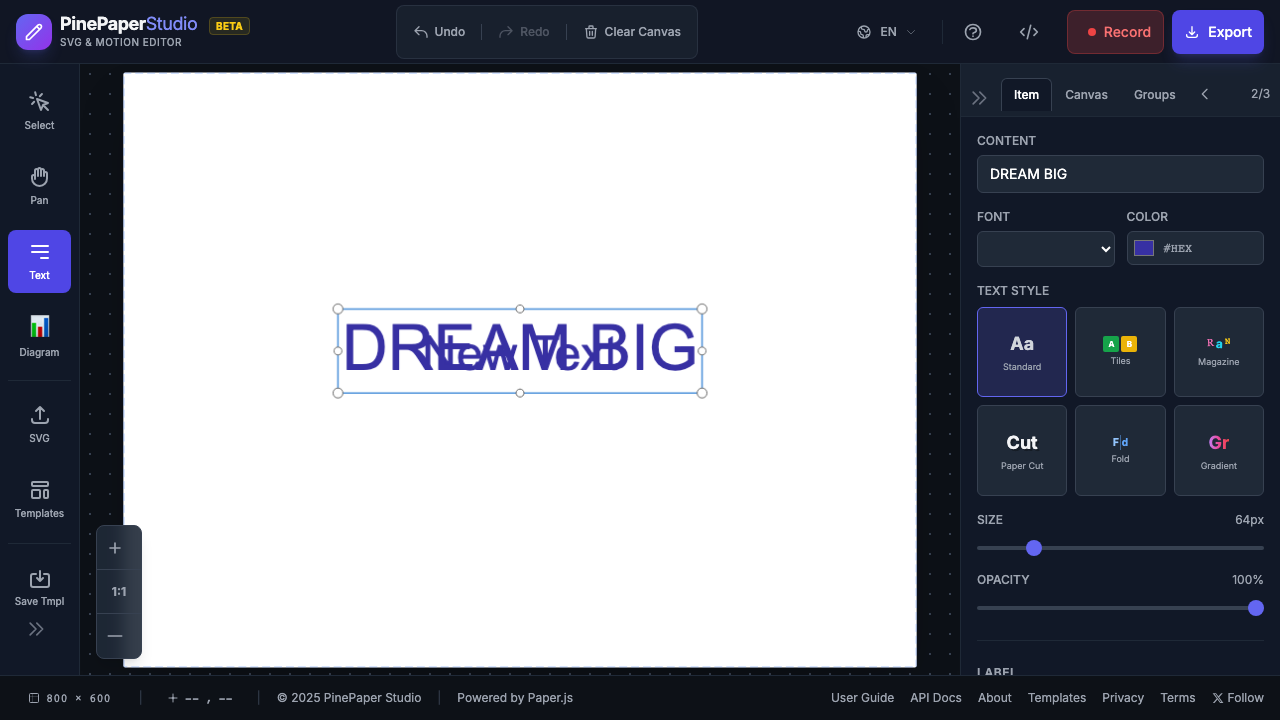
Editing Text
- Select the text with the Selection Tool (V)
- Double-click to enter edit mode
- Modify the text
- Click outside or press Escape to finish
Text Properties
With text selected, adjust these properties in the Properties Panel:
Font Settings
| Property | Description |
|---|---|
| Font Family | Choose from available fonts |
| Font Size | Size in pixels |
| Font Color | Text color |
| Font Weight | Normal, Bold |
Position
| Property | Description |
|---|---|
| X | Horizontal position |
| Y | Vertical position |
Animation
Apply animations to make your text dynamic:
- Pulse — Gentle scale pulsing
- Bounce — Bouncing motion
- Rotate — Continuous rotation
- Fade — Fade in/out
- Wobble — Side-to-side wobble
- Slide — Horizontal sliding
- Typewriter — Letter-by-letter reveal
Tips
Best Practices:
- Use large font sizes (48px+) for social media
- High contrast colors for readability
- Keep text short and impactful
Note: Some animations (like Typewriter) are not supported in animated SVG export. Use MP4 or GIF for full compatibility.
Keyboard Shortcuts
| Shortcut | Action |
|---|---|
| T | Activate Text Tool |
| Enter | Confirm text entry |
| Escape | Cancel / Exit edit mode |