Trim Paths
Trim paths let you animate how much of a stroke is visible, creating “draw-on” effects where lines appear to be drawn in real time. This is one of the most popular techniques in motion graphics for revealing text, illustrations, and diagrams.
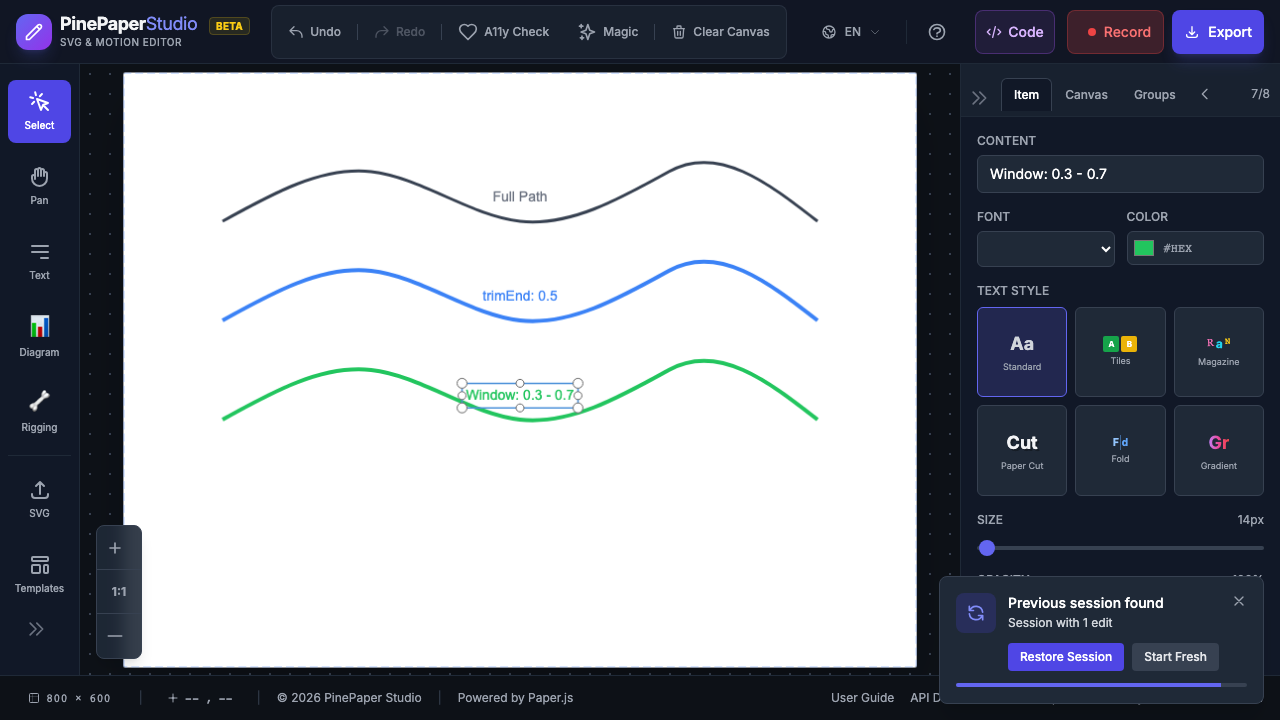
How It Works
Every path has three trim properties:
| Property | Range | Description |
|---|---|---|
| trimStart | 0 - 1 | Where the visible portion begins (0 = path start) |
| trimEnd | 0 - 1 | Where the visible portion ends (1 = path end) |
| trimOffset | 0 - 1 | Shifts the visible window along the path |
When trimStart = 0 and trimEnd = 1, the full path is visible (default). Changing these values reveals or hides portions of the stroke.
Draw-On Effect
The most common use: a stroke that appears to draw itself.
- Create a path or shape with a visible stroke
- Add keyframe animation:
- At time 0:
trimEnd = 0(nothing visible) - At time 2:
trimEnd = 1(fully drawn)
- At time 0:
- Play the timeline to see the path draw itself
This works especially well with:
- Cursive text created with the Cursive Font system
- Hand-drawn illustrations made with the Drawing tool
- Diagram connectors for animated flowcharts
Partial Reveal
Show only a portion of a path:
- Set
trimStart = 0.2andtrimEnd = 0.8to show the middle 60% - Animate both values to expand or contract the visible section
- The hidden portions are completely invisible (not just transparent)
Sliding Window
Create a segment that moves along the path:
- Set a fixed window size:
trimStart = 0,trimEnd = 0.3 - Animate
trimOffsetfrom 0 to 1 - The visible segment slides along the entire path length
This creates effects like:
- Loading indicators
- Scanning/tracing animations
- Race track or progress line effects
Compatible Items
Trim paths work with:
| Item Type | Notes |
|---|---|
| Paths | Lines, curves, freehand drawings |
| Compound Paths | Complex shapes with multiple sub-paths |
| Groups | Applies to all paths within the group |
| Masked Groups | Works with items that have masks applied |
Tip: For the best draw-on effects with text, use the Cursive Font system. It creates single-stroke text paths that are ideal for trim path animation.
Combining with Other Features
- Keyframe Editor - Animate trim properties over time with custom easing
- Relations - Use
driven_byto link trim values to other item properties - Time Expressions - Use math expressions to create complex trim patterns
Tips
- Use easeOut for draw-on effects - it gives a natural deceleration at the end
- Keep strokes visible - Trim paths only affect stroked paths, not fills
- Check stroke width - Thicker strokes look better for draw-on animations
- Stagger multiple paths - Use time offsets to draw paths in sequence
- Preview at full speed - Trim animations can feel different at slow vs. normal speed
Related: Keyframe Editor | Font Studio | Animations