Timeline Panel
The Timeline Panel provides playback controls and editing for everything that happens over time on the canvas — keyframe animations, video and audio clips, and background generators.
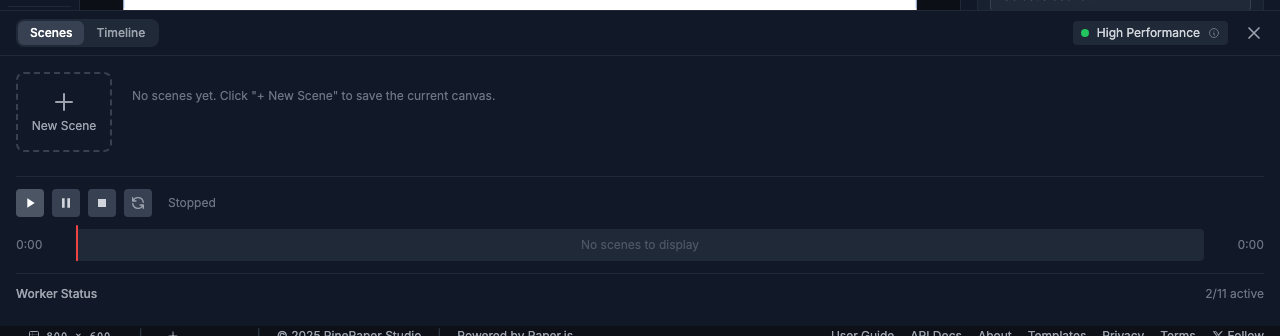
Location
The Timeline Panel is at the bottom of the screen. Press T to toggle it.
Playback Controls
| Control | Shortcut | Action |
|---|---|---|
| ◀◀ | Home | Go to start |
| ▶ / ⏸ | Space | Play / Pause |
| ▶▶ | End | Go to end |
| ✂ Split | S | Split the clip under the playhead in two |
Scrubber
The playhead (vertical line) shows the current time position.
- Drag the playhead to scrub through time
- Click on the timeline to jump to that time
- Hold Shift while dragging for precise positioning
Tracks
Each canvas item that has a notion of time gets its own row. Three kinds of rows can appear, all sharing the same drag/trim convention:
Keyframe-Animated Items
When an item has keyframes, the timeline shows:
- Keyframe diamonds (◆) at each keyframe’s time. Drag a diamond to retime, click to select.
- A translucent indigo bar behind the diamonds — this is the clip block covering the canvas-time window in which the animation plays.

| Action | Effect |
|---|---|
| Drag the bar’s body | Shift the entire animation in canvas time (sets timeOffset) |
| Drag the left edge | Trim the start of the clip; the right edge stays anchored (Premiere convention) |
| Drag the right edge | Trim the end of the clip, clamped to the last keyframe time |
| Press S with the playhead inside the clip | Split at the playhead. The new piece owns its own deep-copied keyframe data; chaining splits produces N+1 independent pieces |
After a split, edits to one half’s easing, color, propertyEasings, or spatial handles do not affect the other half — see Keyframes for the data model.
Video and Audio Clips
Uploaded media gets its own row each. Video clips show a thumbnail strip; audio clips show a green bar with a headphone glyph.

Same drag / trim / split convention as keyframe clips. Each split spawns a fresh decoder for the new piece, so all pieces play independently — including in different canvas-time windows or after one is dragged elsewhere on the timeline. Chaining splits scales linearly: N splits ⇒ N+1 decoders.
Background Generator
When a scene generator is active (sunset, drawWaves, mountains, etc.), a single fuchsia-themed row appears with the generator’s name. The clip bar is a visibility window: outside it, the generator hides and the canvas reveals whatever sits beneath it.

| Action | Effect |
|---|---|
| Drag the bar’s body | Shift the visibility window without changing its span |
| Drag the left or right edge | Trim the start or end of the visibility window |
| S | Not applicable — generators are effects, not clips |
Clip Lane Reference
| Drag body | Trim edges | Split (S) |
|
|---|---|---|---|
| Keyframe item | ✓ shifts timeOffset |
✓ writes clipInPoint / clipOutPoint |
✓ deep-copies keyframes per split (N splits ⇒ N+1 independent pieces) |
| Video / Audio | ✓ shifts clipStartTime |
✓ writes inPoint / outPoint |
✓ spawns a fresh decoder per split |
| Background generator | ✓ shifts clipStartTime |
✓ writes clipEndTime |
n/a |
Adding Keyframes
- Select an item
- Move the playhead to the desired time
- Change a property in the Properties Panel — a keyframe is automatically created
Or:
- Click Add Keyframe in the timeline toolbar
- Or right-click on the timeline and select Add Keyframe
Duration
The timeline duration auto-fits to your content — when you upload a longer video or move a keyframe past the current end, the timeline grows. To change manually, edit the Duration field in the bottom-left of the timeline panel, or modify Export settings.
Tips
Tip: Hold Shift while dragging the playhead for precise positioning.
Tip: A clip’s window doesn’t have to start at 0 — drag the body to the right to delay the start, or split + delete the first half to chop a leading section.
Tip: When two clips overlap on the timeline, both their items render on canvas. For sequential reels, place them end-to-end with no gap.